Ubuntu Desktop
Table of Contents
Boot from USB Drive
Most computers will boot from USB automatically. Simply insert the USB flash drive and either power on your computer or restart it. You should see a screen that looks like.
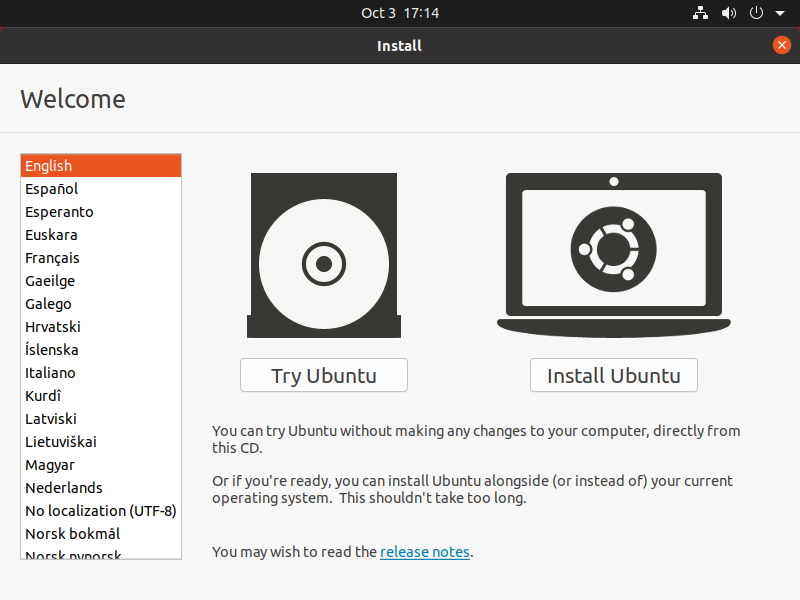
At this point you should select your language and then click Install Ubuntu
If your computer doesn’t automatically boot from USB, try holding F12 when your computer first starts. With most machines, this will allow you to select the USB device from a system-specific boot menu.
Note
F12 is the most common key for bringing up the system’s boot menu, But Esc, F2, and F10 are other common keys. If you are unsure of what key you need to press to get the boot menu up it will usually say in the top right hand side of the screen during a normal boot.
Keyboard Layout
The installer will prompt you with a screen that looks something like
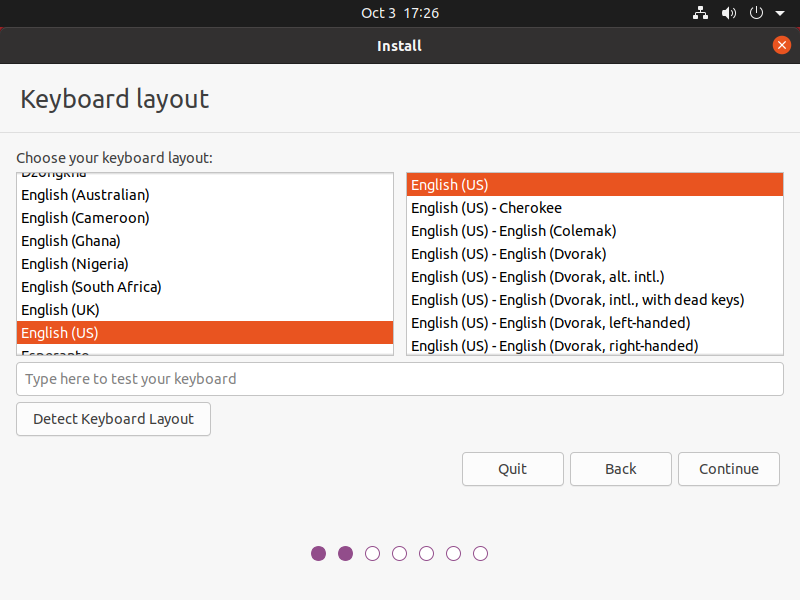
If the installer does not automatically detect your keyboard input you can press the button in the right hand corner of the screen that says Detect Keyboard Layout. It will walk you through some steps to then detect your keyboard properly.
Updates and Other Software
On this screen the installer is going to prompt you for
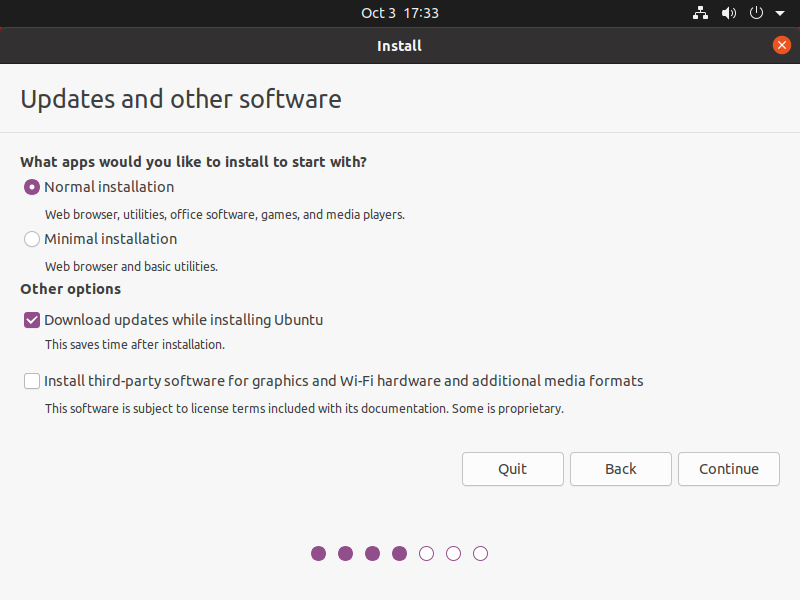
What apps would you like to install to start with?
In this instance I would recommend that you go with the default option (Normal Installation)
Other options
Make sure to select Download updates while installing Ubuntu. This will help speed the setup process later on.
Installation Type
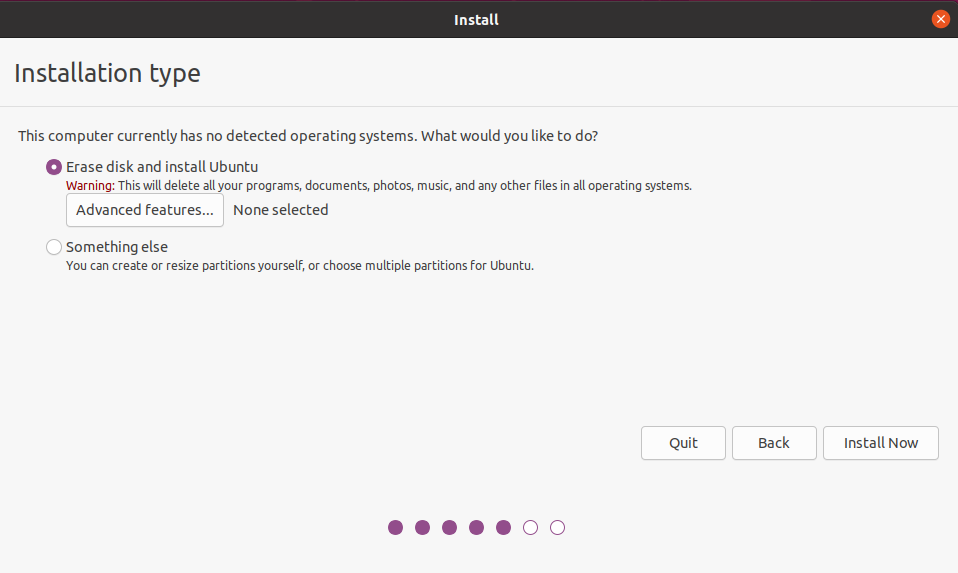
If you are installing Ubuntu on a machine with no other OS on it then you can just select Erase disk and install Ubuntu otherwise it will be more complicated and won’t be covered in this tutorial. Once you select the appropriate option you can click the Install Now button. Once you press that button you will get a button that pops up confirming that you want to make changes to disk. You can click Continue to move on.
Timezone Selection
From this menu you can select your timezone by clicking your location on the map or you can go into the text box and type in the major city that represents your timezone. For example for the eastern side of the US New York Time is the recommended option.
User Account
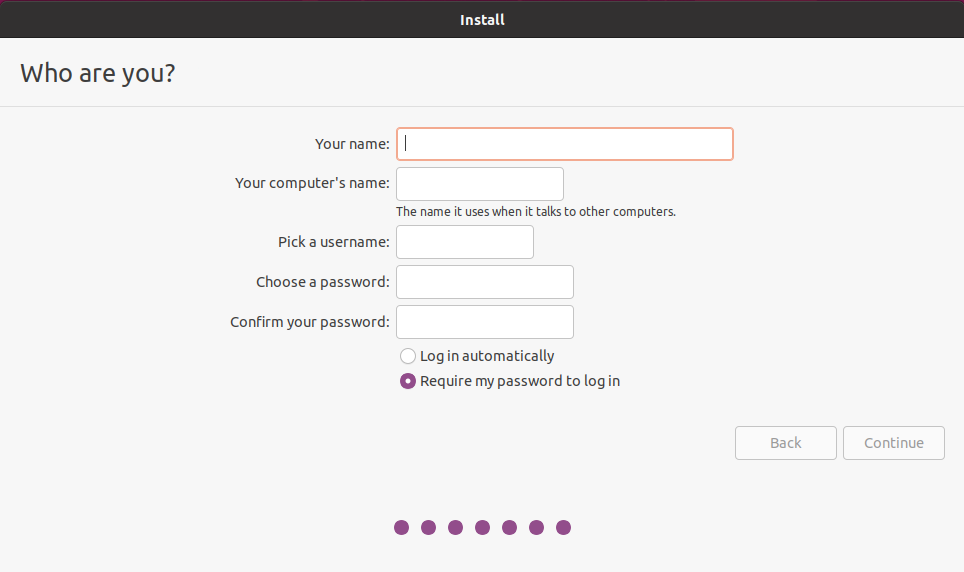
On this screen you are going to type in your user account information. Make sure that you write down your password as you won’t be able to recover it if you forget your password.
Final Install
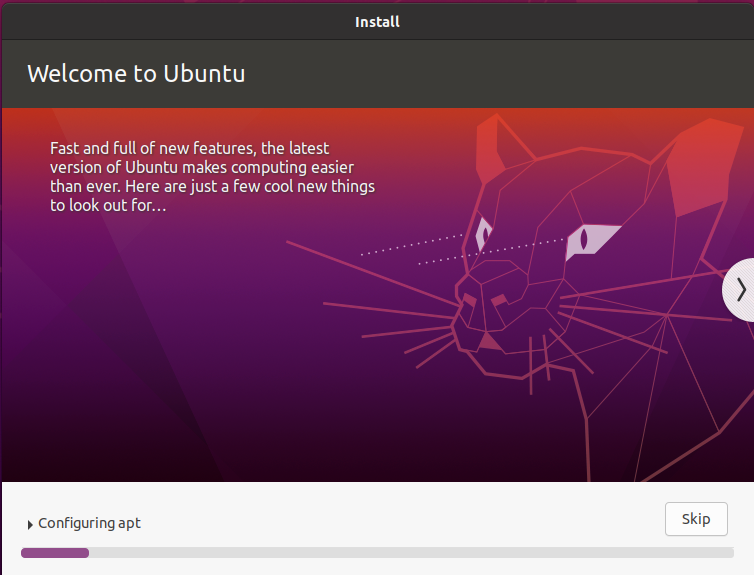
You will be prompted with a request to restart at the end of the install process. Go ahead and restart the OS.
success
Yayy!!! You have successfully installed Ubuntu Desktop