Data Store Overview
Table of Contents
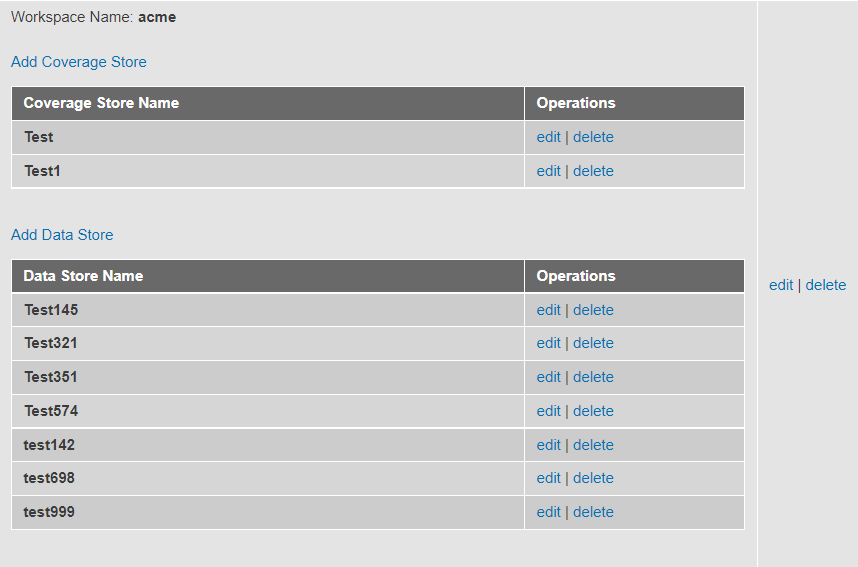
Add Data Store
Click “Add Data Store” button within a Workspace.
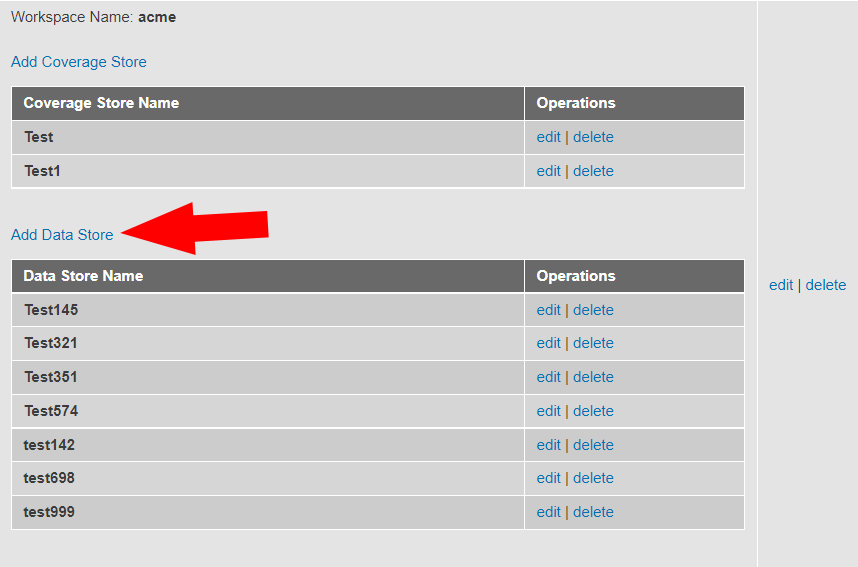
A form will appear where you can enter the name of the Data Store and a description for it. The last part of the form is a “Datastore Upload” box where a shapefile can be uploaded. Here is an example of a shapefile.

Edit Data Store
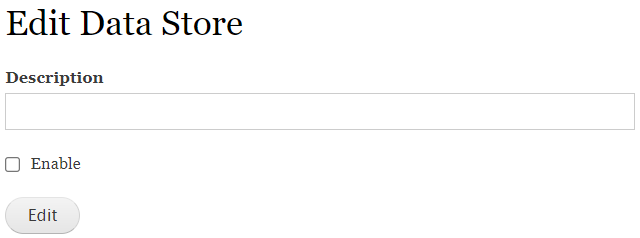
Click the “edit” button in the “Operations” column
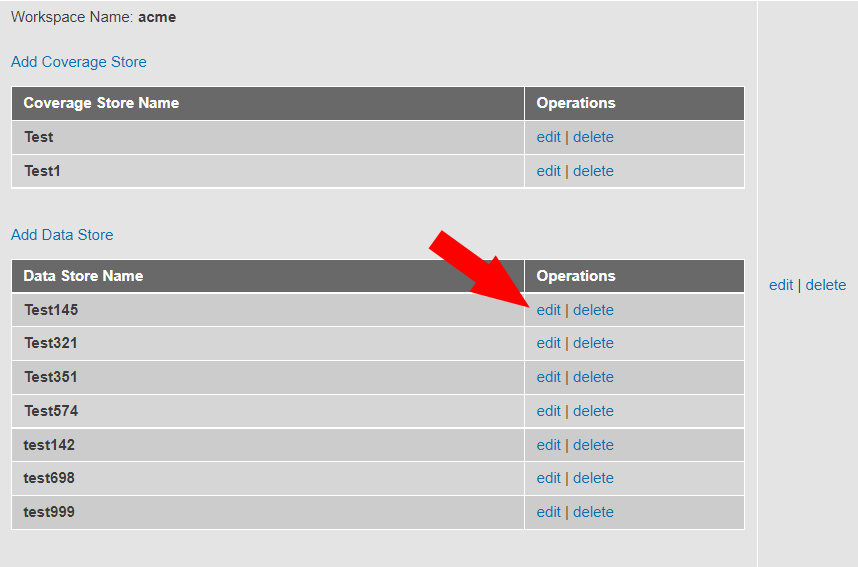
A form will appear where you can enter the description of the Data Store and enable or disable the Data Store by checking or unchecking the box respectively.
Delete Data Store
Click the “delete” button in the “Operations” column
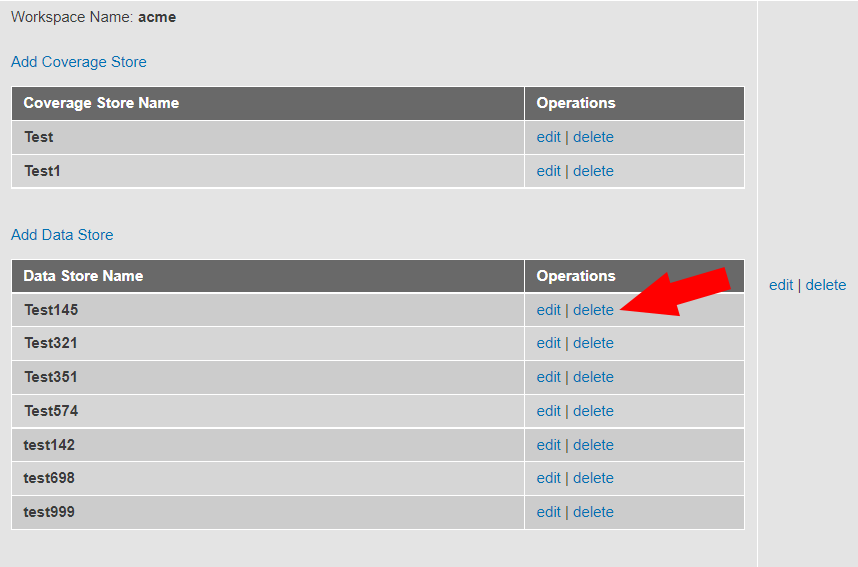
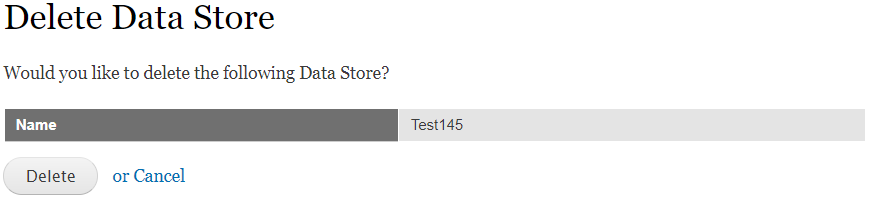
A delete confirmation form will appear. Make sure you are deleting the correct Data Store before clicking that “Delete” button.